
What is Taipei GTA?
Turn the city into your playground.
Taipei GTA, originally titled Taipei GTA, is a Taipei-themed 3D open-world game you can play directly in your browser. It brings city streets, scooters, cars, missions and everyday Taiwanese details into one world to explore. Walk around to take in the streets, ride a scooter through the city, and use the map and in-game phone to plan your next stop.
Unlike a racing game built around a fixed track, Taipei GTA lets you decide where to go. Places inspired by Ximending, night markets and Taipei 101 make the experience about more than speed: recognize streets, try different vehicles, discover destinations and soak up the atmosphere of each area. If you enjoy Taiwan-themed games, scooters or free exploration, this browser game is easy to get into.
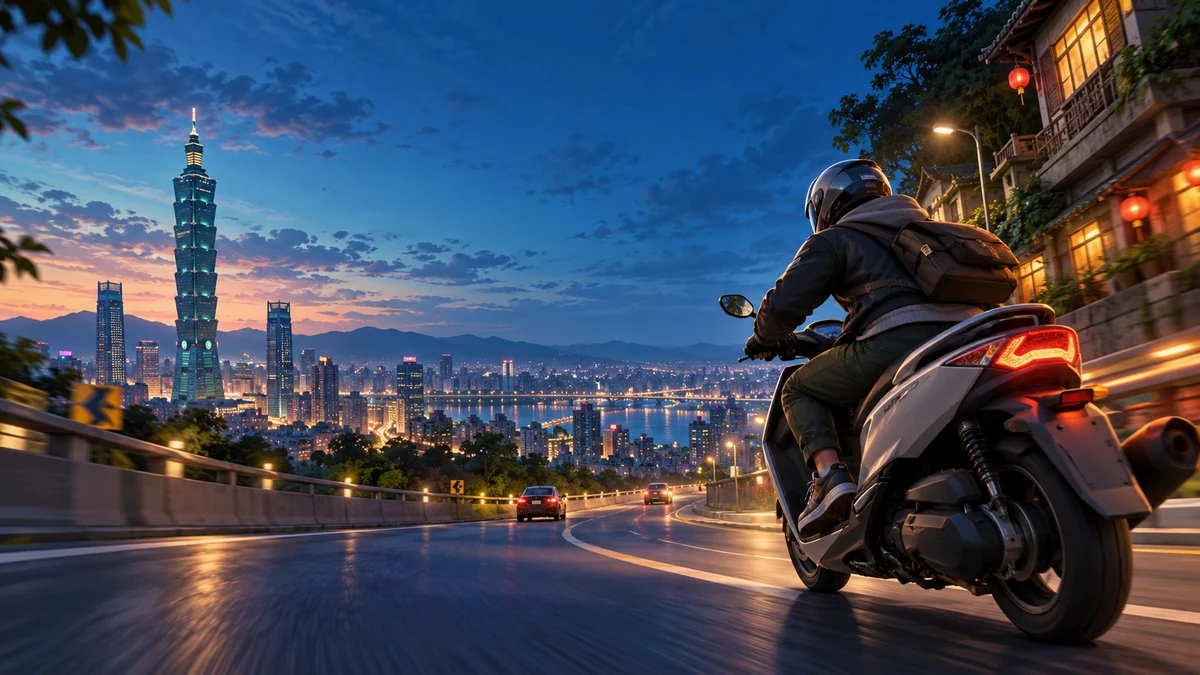
This site embeds the game in the play area above and provides controls and a beginner guide in English. The game itself is served by its original site; updates, missions and gameplay depend on the current version there. The homepage illustration sets the mood. Load the game to see what it actually looks like.
Searches for Taipei GTA, 臺北 GTA, 台北 GTA or 臺北GTA usually refer to this same Taipei-themed browser game. The Chinese guide uses the spelling 臺北 and keeps the original title to help identify the source. 台北 is another common Chinese spelling; these names refer to the same game, not different versions. Check the original title, city setting and controls when choosing where to play, then use a keyboard and mouse, controller or touch controls to suit your device.
Your first steps in Taipei GTA
Spend a few minutes learning the screen and controls before heading across the city. The steps below offer a useful starting point for new players. They are practical suggestions, not an official mission sequence.
Load the game and choose your controls
Select Start game above and wait for the loading screen to finish. In the main menu, take a look at the character options, settings and controls. Use a keyboard and mouse on a computer or touch controls on a phone. For a controller, first check that your browser recognizes it, then read the in-game button guide.
Walk around before finding a vehicle
Try moving with W, A, S and D and looking around with the mouse. Once you feel comfortable, approach a scooter or car and press F to get in. Practice accelerating and braking on a clear stretch of road. Remember that Space does different things on foot and while driving.
Open the map and pick a nearby destination
Press M to open the map and select a destination for navigation. Start somewhere close. Short trips let you practice reading the road, turning and parking before choosing your next stop, making the city easier to learn than racing through it at full speed.
Check missions on the in-game phone
Press T to open the in-game phone for missions, the map, the metro and other features. Read the mission instructions before heading to the marked location. Check the game for mission availability, completion requirements and rewards.
Taipei GTA controls
These keys come from the original game’s keyboard and mouse controls page. Click inside the game first so it receives your keyboard input. If an update or custom setting changes a binding, follow the controls shown in the game’s main menu.
On foot and general controls
| Action | Key | When to use it |
|---|---|---|
| Move | W A S D | Explore on foot and approach interactive objects |
| Look around | Mouse | Check your surroundings and direction |
| Sprint | Shift | Move faster on foot |
| Jump | Space | Jump while on foot |
| Interact | E | Follow the on-screen interaction prompts |
| Switch weapon / Reload | Tab / R | Follow the in-game instructions |
| Map / Phone / Pause | M / T / Esc | Navigate, check missions and open the pause menu |
Scooters and cars
| Action | Key | Tip |
|---|---|---|
| Enter / Exit vehicle | F | Use when you are close to a vehicle |
| Accelerate | W | Use short presses to get a feel for acceleration |
| Brake / Reverse | S | Slow before turns and adjust your parking position |
| Steer left / right | A / D | Look ahead and prepare for the turn |
| Handbrake / Drift | Space | Use while driving; on foot this key jumps |
| Horn / Radio | H / Q | Sound controls while driving |
| Change camera / Look behind | V / C | Adjust your view and check behind the vehicle |
Your browser may use Esc to exit fullscreen or release the mouse pointer before passing the key to the game. If it seems unresponsive, check that the game has focus, then use its pause menu.
Scooter riding tips: control first, speed later
Riding a scooter in Taipei GTA takes more than holding the accelerator. Check the camera angle and the direction you are facing, then use short bursts of acceleration to learn how steering with A and D feels. Higher speed leaves less time to judge junctions and correct your direction. Braking before a turn is usually easier to control than trying to recover halfway through it.
Practice on a straight road
Choose a road with a clear view and practice starting, slowing down, stopping and accelerating again. S brakes or reverses, so release it when you stop unless you want to move backward.
Find a camera angle that works
If the vehicle blocks your view, press V to try another camera angle. Make sure you can see the road ahead before speeding up. At an unfamiliar junction, slowing down is easier to manage than making repeated sharp steering corrections.
Use navigation as a guide
Check your destination on the map, then return to driving. Keep watching for corners and obstacles instead of following navigation blindly. Stop when you need to check the route so you can explore at a pace you can control.
Save drifting for later
Space applies the handbrake while driving. Get comfortable with normal turns before trying to drift, and leave more braking distance in the rain. These tips apply only to driving in the game.
A scooter is a good way to enjoy the streets on short trips. Try a car if you want to compare visibility and steering. Getting somewhere as fast as possible is not the only goal; finding controls you enjoy is part of the open-world experience.
Explore the city, from street corners to the skyline
The game draws on Taipei landmarks and neighborhoods, including Ximending, night markets, Xinyi and Taipei 101. They help you recognize your surroundings and plan a route. This is a creative game world, so follow the streets, distances and transport options shown in the game rather than assuming they match the real city.
Ximending and the streets: slow down and look around
On your first trip, focus on how the streets and corners connect. Walking makes it easy to stop and look around; riding a scooter lets you compare turns and sightlines on different roads. Try walking and riding the same route to experience the city at different speeds.
Night markets and everyday life: look for Taiwanese details
Night markets are a recognizable part of a Taipei setting. Look at the signs, stalls and street atmosphere to see how local life becomes an interactive world. The original game states that all brands are fictional parodies, so treat names in the scenery as creative elements.
Taipei 101 and Xinyi: navigate by landmarks
Large landmarks help you find your bearings in unfamiliar areas. Use Taipei 101 as a visual reference and press M to set a destination on the map. Practice relating your view to your map position. Once nearby, get out and look around on foot; exploring does not have to mean driving all the time.
Map, phone and metro: try another way to travel
Press M for the map and navigation, or T for the phone’s missions and metro options. The game indicates that metro station entrances can take you between areas. To explore a different district, check the metro information on the phone and follow the game’s directions to a station. It is another way to plan your trip without riding the entire route every time.
How to play on a computer, phone or controller
Computer: keyboard and mouse for driving and looking around
On a computer, move with the keyboard while looking around with the mouse. Click inside the game after loading so your keys control it instead of scrolling the surrounding page. Theater mode enlarges the play area, while fullscreen helps you focus on the road. The overview and control tables remain below when you leave fullscreen.
Phones and tablets: virtual stick and touch buttons
The game’s touch guide uses the left stick to move and swipes on the right to look around while on foot. When driving, use the accelerator, brake and other on-screen buttons. Landscape orientation gives the road and controls more space. Screen proportions and performance vary by device; if the embedded area feels cramped, use Open original game to play directly.
Controller: check the game’s button guide first
The main menu’s controls guide includes a controller tab. Connect your controller, check device and browser support, then follow the in-game guide for sticks and buttons. Button labels differ between controllers, so the keyboard shortcuts here should not be read as controller mappings.
Performance and loading: give the city time to load
A browser game needs no installation, but it still downloads resources over the network. Initial loading time depends on your connection and device. If the game stutters, close other demanding tabs and look for suitable options in the game settings. Embedded play and the original site can behave differently, so opening the original site can also help troubleshoot a problem.
Quick troubleshooting
- Keys scroll the webpage: Click inside the game before using the controls. After reading the guide, keyboard focus may still be on the surrounding page, so Space or directional input may not reach the game.
- The page has loaded, but the city has not appeared: Loading the original webpage and loading all game resources are separate stages. Check the game’s own progress indicator. If nothing changes after waiting, open the original site to see whether the same issue occurs there.
- The game is too small on a phone: Turn your phone sideways or open the original site. If your browser does not support webpage fullscreen, try theater mode to enlarge the embedded game.
- Your progress is missing after switching tabs: Return to the browser and play page you used before. Different origins, private browsing sessions or browsers may keep separate storage. Avoid clearing browsing data just to fix a display issue, as this could also erase game data.
- A shared link has no preview image: The platform needs to fetch the public page URL and image. You are sharing this game guide, with a Taipei-themed illustration as its preview. A platform’s cached preview may not refresh immediately after an update.
Taipei GTA FAQ
What kind of game is Taipei GTA?
Taipei GTA is a Taipei-themed open-world browser game combining city exploration, scooters, cars, map navigation and missions. This site embeds the original game and provides a guide in English.
Do I need to install anything or register?
You do not need to install a game app or register on this site. Select Start game to load the original game, then follow its main menu to play. Game resources still need to download on first load; this is not an offline game.
Is Taipei GTA free to play?
This site’s play page and guide are free. The original game is currently accessible directly, with an optional way to support its creator in the main menu. Its content and availability depend on the latest version on the original site.
Can I play on a phone or with a controller?
The original game’s instructions cover keyboard and mouse, controller and touch modes. On a phone, use the virtual stick and on-screen buttons, preferably in landscape orientation. Performance depends on your device and browser. For a controller, check the game’s controller guide for the correct button mappings.
How do I ride a scooter, open the map and find missions?
With a keyboard, press F near a vehicle to enter or exit. W accelerates, S brakes or reverses, A and D steer, and Space is the handbrake. Press M to open the map and select a destination for navigation. Press T to open the in-game phone for missions and other features.
Why is the screen black, loading slowly or unresponsive?
The game needs time to load its city and graphics. Wait for its progress indicator to finish, check your connection, click inside the game for keyboard focus and close unnecessary tabs. If it still will not play, use Reload game or Open original game to try the source directly.
Does sharing a link include my game progress?
The share buttons only share this page’s URL. They do not read game scores or save data. The original game handles progress; embedded play, a tab on the original site, different browsers and private browsing may use separate storage. Do not assume your progress will carry between them.
Is this an official Rockstar GTA game?
This is an independent game portal and guide. It is not officially affiliated with Rockstar Games or the Grand Theft Auto series, and we are not the original game’s developer. Refer to the original site for the game’s title and content. Our main image is AI-generated themed artwork, not a screenshot of gameplay.