
MOBILE CONTROLS · LOADING & PERFORMANCE
Taipei GTA on mobile: touch controls and black screen troubleshooting
Opening a game on a phone does not guarantee the same experience on every device. Learn the touch controls first, then separate loading problems, graphics performance and input issues.
Play online ↗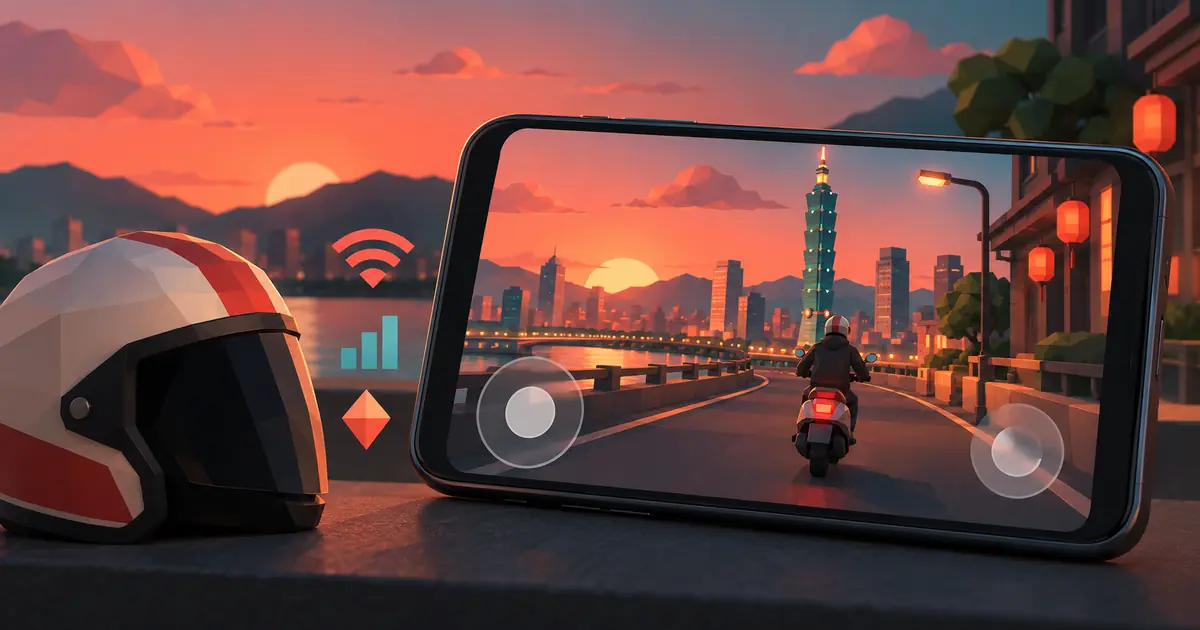
Start with these essentials
- This site does not require an APK or app install. Open the homepage in a regular browser, then load the game.
- Walk with the left joystick and look around by swiping on the right. Driving uses accelerator and brake pedals, with the joystick for steering.
- Start troubleshooting with Auto or Low graphics. Clearing site data may affect progress and should not be the first step.
Can you play on a phone? Choose how you open it
The game has a Touch tab in its controls menu, and mobile players can enter through a browser without registering on this site or installing a game client. It still downloads city and image resources and renders a 3D scene on your device. No installation does not mean offline play, zero data usage or no demand on the phone's graphics and battery. Return home and play ↗
- Open our homepage in your device's regular browser. If you arrived inside a social app's browser, try opening it in the device browser as a comparison; this does not mean every in-app browser is incompatible.
- Prefer landscape orientation before loading to leave more room for the game and controls. Rotation-lock settings vary by device.
- Tap Start game and wait for the game's loading progress to finish before starting from its menu. Avoid repeatedly refreshing while it is loading.
- Read Controls → Touch in the original menu. Check movement and the camera with a short walk before trying a vehicle.
If the homepage text and buttons work but the play area never finishes loading, check whether game progress is still changing. If it is frozen, confirm that other pages open normally, then return to the homepage and reload the game once. The homepage and city resources load in separate stages, so a visible button does not mean the city is ready. Return to the homepage play area ↗
Touch controls: walking, driving and menus
W, F, M and T are keyboard controls, not buttons to look for on a phone. The touch interface changes between walking and driving. If the joystick turns the vehicle but it does not move forward, check whether you are seated in it: driving uses an accelerator pedal rather than pushing the movement stick forward.
| Mode | Action | Touch control |
|---|---|---|
| Walking | Movement and camera | Left joystick to move; swipe on the right to look around. |
| Walking | Sprint, jump and interact | Push the joystick fully or use Sprint; use Jump and Interact buttons. |
| General | Enter or exit a vehicle | Approach a vehicle and use the enter/exit button. |
| Driving | Accelerate, brake or reverse | Use the accelerator and brake pedals; steer with the left joystick. |
| Driving | Handbrake and camera | Use the Handbrake and Camera buttons; practice at low speed. |
| Menus | Missions, map and pause | Use Phone, Map and Pause. Missions are inside the in-game phone. |
Set the camera to a view you can read clearly, then use short accelerator presses to practice. Swiping directly over a joystick or another button may not adjust the camera as you expect, so use an unobstructed area on the right. When you open the phone or map, finish that menu action and close it before returning to movement or driving.
Identify the symptom before trying a fix
| What happens | Check first | Next step |
|---|---|---|
| Loading progress is incomplete | Connection and whether progress is still changing | Keep the page foregrounded. If stuck, check that other pages open, then reload the game on the homepage. |
| Menu works but the city is black or partly broken | Graphics settings and device support | Try Low graphics, then compare a regular browser or another device. |
| The city appears but movement stutters | Device workload and graphics quality | Close heavy apps or tabs, lower graphics and observe FPS. |
| The scene looks normal but controls do nothing | Open menus and controls for the current mode | Close the map/phone, tap the game and use the correct touch button. |
| The game changes after switching apps | Whether the system suspended or reloaded the page | Return to the same page and check. Keep the game foregrounded during a session. |
This table is a troubleshooting sequence for browser 3D games, not a diagnosis of your device. A black screen has several possible causes. Fast internet alone does not prove rendering will work, and success in another browser does not identify exactly what failed in the first one. Change one condition at a time so the results remain comparable.
Graphics settings: aim for stable control first
On October 6, 2026, the original menu offered Auto, Low, Medium, High and Ultra graphics, plus Show FPS. It also explicitly advised lowering graphics when the scene stutters. Start with Auto; if movement feels uneven after the city loads, compare Low before increasing quality. A setting that lets you judge turns and braking reliably is more useful than one that looks sharper but is hard to control.
- Stop somewhere recognizable, switch to Low and see whether the original stutter improves.
- If you need a comparison, enable FPS and observe the same location with similar actions. Do not judge an entire session from one instant.
- Close unnecessary video, gaming or other heavy tabs and apps, then compare again. If the phone is noticeably hot, let it cool before retrying.
- Raise quality one step at a time. If turning or braking becomes hard to judge again, return to the more stable setting.
Browser 3D graphics commonly use WebGL. MDN explains that hardware support is needed as well as browser support, so a browser's name alone cannot guarantee smooth play. This guide does not claim a universal minimum phone model or a fixed FPS target for every device. MDN: WebGL support ↗
Black screens or failed loading: start with simple comparisons
- Check that you tapped Start game on the homepage and look at the in-game loading progress. A working homepage button does not mean the city has loaded.
- If progress is changing, keep the page foregrounded and wait. If it is frozen, check whether other sites also fail to connect.
- Once the connection is working, reload once. Repeated refreshes restart the resource-loading process.
- If the menu loads but the city looks broken, try Low graphics, then compare an updated regular browser or another device.
- Return to the homepage and try once more with the same settings. If different devices and connections also fail, the game may need a fix or its service may need to recover.
These checks narrow the conditions. If you still cannot play, record the device and operating system, browser, graphics setting and where it stopped: loading, the main menu or after entering the city. Reproducible steps are more useful for understanding the problem than saying only that the game does not work.
Mobile questions: downloads, orientation and saves
Will every iPhone or Android phone run it smoothly?
There is no guarantee. Touch support exists, but graphics capability, available memory, browser behavior and the connection still matter. Check walking, turning and braking before planning a long session. If Low graphics still feels poor, playing on a computer is a practical option.
Do I need an APK or a home-screen installation?
Select Start game on the homepage to play in your browser. No APK or home-screen installation is required. Return to the homepage whenever you want to play again, rather than treating a similarly named download page as this site's play method.
How do landscape, fullscreen and theater mode differ?
Landscape is device orientation. Fullscreen depends on browser and device support. Theater mode on the homepage enlarges the game area within the page. None of these lowers graphics quality or guarantees better performance. If fullscreen is unavailable, keep playing in landscape in the normal homepage play area.
Why can progress differ after switching browser or using private mode?
Browser storage is separated by origin and browsing mode. MDN notes that local storage in private browsing is cleared when that session closes. For continuity, use the homepage with the same device and browser, and do not assume that different devices or browsers synchronize progress. MDN: browser storage ↗
Sources and verification
On October 6, 2026, we checked the original keyboard, touch and settings pages. Device checks are recommendations informed by browser graphics and storage behavior. We have not tested every iPhone or Android model and do not guarantee a specific FPS.
- Taipei GTA homepage: touch controls and game settings ↗Return home, load the game and check touch buttons, graphics settings and the FPS option.
- MDN: WebGL and graphics hardware support ↗Explains why 3D browser rendering depends on hardware as well as connection speed.
- MDN: Web Storage API ↗Background on browser and private-mode storage, which helps explain why progress may differ.